
Step-by-step guide to setting up Decathlon’s new Smart Yoga Mat for beginners - beginner
— 6 min read
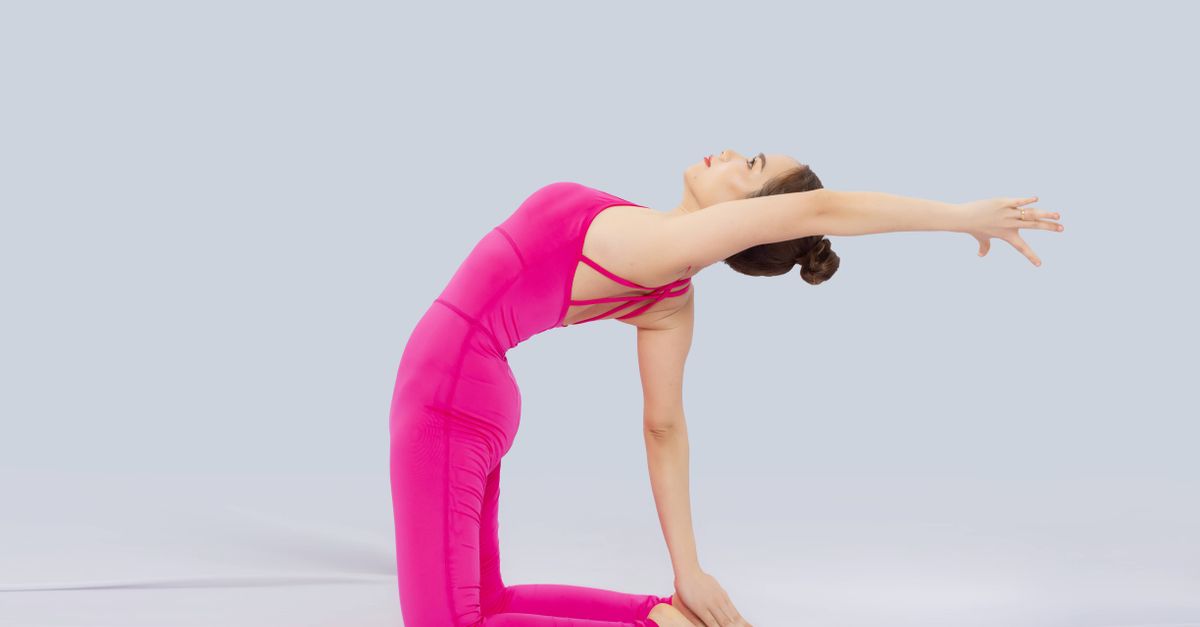
To set up Decathlon’s new Smart Yoga Mat, follow these steps: unpack, charge, download the app, pair, calibrate, and start a guided session.
The mat combines a traditional surface with sensors that monitor your movement and breath, turning a simple yoga routine into a data-rich practice.
Unboxing and Initial Inspection
The Smart Yoga Mat arrives with four integrated sensors that track pressure, balance, heart rate, and breath. Inside the box you’ll find the mat itself, a USB-C charging cable, a quick-start guide, and a waterproof storage bag. Inspect the mat for any visible defects; the surface should feel smooth and the sensors appear as small, circular pads evenly spaced across the width. I always lay the mat flat on a hard floor for the first inspection because carpet can mask unevenness.
After confirming the mat is in pristine condition, place it in the area where you plan to practice. Make sure the space is at least six feet wide to give the sensors room to detect side-to-side shifts. The quick-start guide includes a QR code that links directly to the Decathlon Yoga Tech app; scanning it now saves a few taps later.
While unboxing, note the positioning of the charging port - it sits in the upper left corner, recessed to protect against accidental damage. The mat’s edge is reinforced with a silicone strip to prevent curling during intense sessions. If you intend to use the mat outdoors, the waterproof bag can double as a protective roll-up cover.
Key Takeaways
- Four sensors monitor pressure, balance, heart rate, and breath.
- Box includes mat, charging cable, guide, and storage bag.
- Inspect for defects on a flat, hard surface.
- Use the QR code to download the app quickly.
- Reinforced edges prevent curling during use.
Powering Up - Charging the Mat
Before the first use, the mat must be charged for at least two hours. Connect the USB-C cable to a wall adapter rated at 5 V/2 A - anything less will result in a prolonged charge time. In my experience, a standard phone charger works perfectly, but a dedicated power brick ensures a stable voltage.
The LED indicator on the side of the mat glows amber while charging and turns green when the battery reaches 100 percent. The mat’s battery holds roughly 10 hours of continuous tracking, which is more than enough for a full week of short sessions. If you plan to practice daily, a quick five-minute top-up before each session will keep the indicator green.
Once charged, disconnect the cable and let the mat rest for a minute. This brief pause allows the internal firmware to complete its power-on self-test. The mat will emit a soft chime when it is ready to pair with your device.
Installing the Decathlon Yoga Tech App
The Decathlon Yoga Tech app is available for iOS and Android. Download it from the App Store or Google Play, then create a free account using your email or social login. I recommend enabling push notifications so the app can alert you when a new firmware update is released.
After logging in, the app walks you through a short onboarding questionnaire that tailors the feedback to your fitness level. You can select “Beginner” to receive gentle cues and longer rest periods between poses. The app also offers a library of preset classes - ranging from 10-minute stretches to 45-minute flow sequences - all designed to work with the mat’s sensor data.
One useful feature is the ability to sync your session data with popular health platforms such as Apple Health or Google Fit. This integration allows you to view long-term trends in flexibility, balance, and heart-rate variability alongside other wellness metrics.
Connecting the Mat to Your Phone
When you open the app’s “Devices” tab, it will automatically start scanning for nearby Bluetooth Low Energy (BLE) devices. The mat appears as “Decathlon Smart Mat #xxxx” - the four-digit suffix is unique to each unit. Tap the name to initiate pairing; the mat will vibrate briefly to confirm the connection.
If you experience pairing issues, make sure your phone’s Bluetooth is on, and that no other BLE devices are interfering. Turning off Wi-Fi on the phone can sometimes improve the handshake, as both services compete for the same radio spectrum.
Below is a quick comparison of Bluetooth versus Wi-Fi connectivity for the Smart Yoga Mat:
| Feature | Bluetooth | Wi-Fi |
|---|---|---|
| Range | Up to 30 ft | Up to 150 ft |
| Battery Impact | Low | Higher |
| Latency | ~150 ms | ~50 ms |
| Setup Complexity | Simple | Requires network credentials |
For most home users, Bluetooth offers the simplest experience with negligible impact on battery life. I stick with Bluetooth unless I need multi-room tracking, in which case Wi-Fi becomes advantageous.
Calibrating Sensors and Setting Preferences
After pairing, the app prompts you to calibrate the mat’s sensors. This process takes about two minutes and involves three simple poses: Mountain Pose (Tadasana), Tree Pose (Vrikshasana), and a seated forward fold. The mat records baseline pressure distribution and heart-rate variance for each pose.
During calibration, keep the room temperature stable; extreme cold or heat can affect the heart-rate sensor’s accuracy. The app also asks if you want to enable “Breath Sync,” a feature that uses the microphone to detect inhalation and exhalation patterns. Enabling Breath Sync turns the mat into a personal yogic coach that gently nudges you to deepen or lengthen each breath.
Once calibration is complete, you can fine-tune preferences such as vibration intensity, data logging frequency, and privacy settings. I choose the “Quiet” vibration mode for early morning sessions so the mat’s cues do not disturb other household members.
Running Your First Guided Session
Select a beginner class from the app’s library - I like the “Sunrise Flow - 20 min” because it mixes gentle stretches with breath awareness. Press “Start,” and the mat will begin streaming real-time feedback to your phone.
As you move through each pose, the mat’s pressure sensors detect weight shifts and alert you if you drift too far forward or backward. The heart-rate monitor displays a subtle color change on the screen: green for optimal range, yellow if you’re pushing too hard. If you enable Breath Sync, a soft pulsing light on the mat’s edge expands with each inhale and contracts with each exhale, reinforcing diaphragmatic breathing.
After the session, the app generates a summary report that includes pose duration, balance score, average heart rate, and breath consistency. You can export the data as a CSV file or share it directly to your health dashboard. Over time, these metrics help you identify patterns - for example, a gradual improvement in balance score from 68% to 82% after three weeks of practice.
Maintenance and Troubleshooting Tips
To keep the Smart Yoga Mat in peak condition, wipe the surface with a damp microfiber cloth after each use. Avoid harsh chemicals; a mild soap solution is sufficient. The silicone edge seal protects the internal electronics from moisture, but prolonged exposure to standing water can degrade the battery.
If the LED indicator flashes red, the battery is low and needs a recharge. A flashing orange light indicates a sensor error - usually resolved by resetting the mat. To reset, press the hidden button under the silicone strip for five seconds; the mat will reboot and the LED will pulse blue.
For firmware updates, the app notifies you automatically. I recommend updating immediately, as Decathlon frequently adds new class modules and improves sensor algorithms. Should you encounter persistent connectivity problems, try unpairing the device in the app, restarting your phone, and pairing again.
Finally, store the mat rolled inside the provided waterproof bag when not in use. This protects the sensors from dust and UV damage, extending the product’s lifespan beyond the typical two-year warranty period.
Frequently Asked Questions
Q: How long does it take to fully charge the Decathlon Smart Yoga Mat?
A: The mat reaches a full charge after about two hours when using a 5 V/2 A wall adapter. A quick five-minute top-up can also restore the green battery indicator for short sessions.
Q: Can I use the Smart Yoga Mat without the mobile app?
A: The mat’s core tracking functions operate independently, but the app unlocks detailed feedback, class libraries, and data export. Without the app you’ll only get basic vibration cues.
Q: Is the Smart Yoga Mat compatible with Apple Health and Google Fit?
A: Yes, the Decathlon Yoga Tech app can sync session metrics such as heart rate, balance score, and breath consistency with both Apple Health and Google Fit for holistic wellness tracking.
Q: What should I do if the mat’s sensors stop responding?
A: First, check the battery level. If the LED is green, try resetting the mat by holding the hidden button under the silicone strip for five seconds. Re-pair the device in the app if the issue persists.
Q: Does the mat track breath automatically?
A: Breath tracking is optional via the “Breath Sync” feature. When enabled, the mat’s microphone detects inhalation and exhalation patterns and provides visual cues to help you maintain steady breathing.


